ByJohn A
How to Safely Reset a WordPress Website Without Losing Essential Files with WP Reset
The safest way to reset a WordPress website with WP Reset is to back up the site first, create a database snapshot, protect your uploads and custom files, then run only the reset level that matches your goal. A reset is not casual maintenance. It changes the database and can remove content, users, settings, and plugin data. Since WordPress powers over 43% of all websites, reset mistakes can affect real stores, blogs, and client projects at scale.
TLDR: Use WP Reset when you need a clean WordPress install but want to keep key files such as media uploads, themes, plugins, and configuration files. For example, a small agency rebuilding a 120-page test site could reset the database in minutes while keeping the wp-content/uploads folder intact. Always create a full backup and a WP Reset snapshot before pressing the final reset button. If you skip that step, expect to waste time rebuilding settings that took hours to configure.
What WP Reset Actually Resets
WP Reset is a WordPress plugin made for controlled site resets. It is useful for developers, agencies, site owners, and support teams who need to clean a broken or bloated site without manually deleting database tables.
A standard site reset usually removes:
- Posts, pages, and custom post types
- Comments
- WordPress options and settings
- Plugin and theme settings stored in the database
- Users, except the currently logged-in admin account
- Menu structures and widget settings
It usually does not delete the physical files in your WordPress installation. That means files inside wp-content/uploads, installed themes, installed plugins, and core WordPress files can remain on the server. This is exactly why WP Reset is safer than deleting folders by hand through FTP.
Still, do not confuse “files remain” with “everything is safe.” Media files may stay in the uploads folder, but their database records can be removed. Your images may still exist on the server, yet WordPress may no longer show them in the Media Library.
Define What Must Be Protected First
Before using WP Reset, make a short list of essential files. This step sounds basic, but it prevents expensive mistakes.
Protect these files and folders:
- wp-content/uploads — images, PDFs, videos, and other media files
- wp-content/themes — active theme and child theme files
- wp-content/plugins — plugins you may want to reactivate later
- wp-config.php — database credentials and configuration constants
- .htaccess — rewrite rules, redirects, and some security rules
- Custom code snippets — especially code stored in theme files or snippet plugins
If a developer has edited a live theme directly, be extra careful. Honestly, it feels like one of the most annoying WordPress habits because those edits can vanish during theme changes, resets, or updates. Save a copy of the theme folder before doing anything else.
Create a Full Backup Before Using WP Reset
A WP Reset snapshot is helpful, but it is not a full site backup. A snapshot focuses on the database. A full backup includes both the database and files. You need both if the site has business value.
Use your hosting control panel, a trusted backup plugin, or server-level backup tools. Store the backup away from the site itself. A backup saved only inside the same WordPress installation is weak protection if the server fails or files are overwritten.
Your backup should include:
- The full WordPress database
- The complete wp-content folder
- wp-config.php
- .htaccess or server configuration files
- Any custom directories outside WordPress
Test the backup if possible. Download it. Open the archive. Confirm the uploads folder is inside. A backup that cannot be restored is just a false sense of safety.
Create a WP Reset Snapshot
After the full backup, create a snapshot inside WP Reset. This gives you a quick database restore point before you make changes.
To do this:
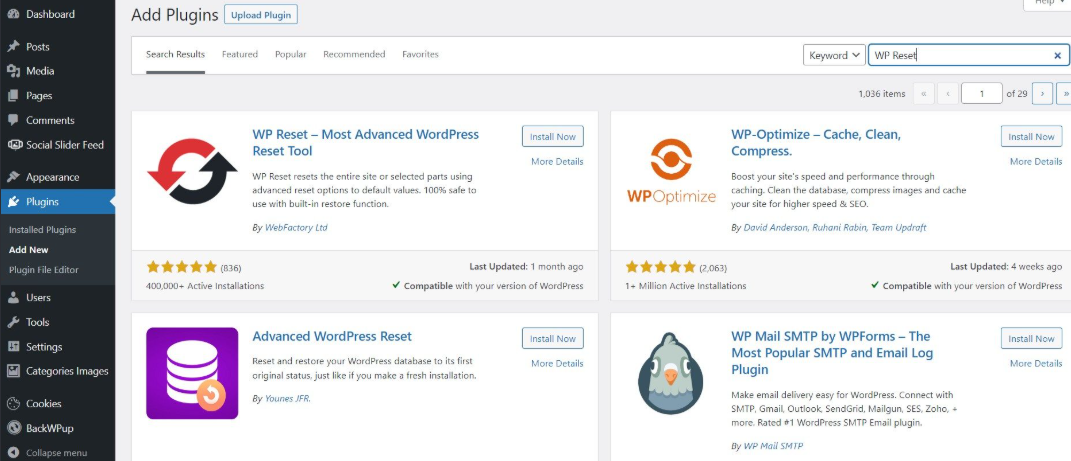
- Install and activate WP Reset.
- Go to Tools > WP Reset.
- Open the Snapshots section.
- Create a new snapshot with a clear name, such as Before redesign reset.
- Wait for the snapshot to finish before continuing.
Use names that make sense later. “Snapshot 1” tells you nothing when something breaks at 11:30 p.m. A clear label can save you from restoring the wrong version.
Choose the Right Reset Option
WP Reset gives you several tools. Do not pick the strongest option unless you truly need it.
Use a standard site reset when you want to remove content and settings but keep themes, plugins, uploads, and the current admin user. This is common during redesigns, failed demo imports, and development cleanup.
Use selective tools when only one area is messy. For example, you may only need to delete transients, clean the uploads folder, remove themes, or delete plugins. This is safer than wiping the whole database.
Use stronger reset options only on staging or test sites. If you run a harsher reset on a live store, membership site, or booking site, you may destroy order records, customer profiles, or payment-related settings.
It drives me crazy that some site owners treat resets like clearing a browser cache. They are not the same. A cache clear is temporary. A reset can remove the working structure of the site.
Run the Reset Safely
Once backups and snapshots are ready, proceed slowly.
- Confirm you are logged in as an administrator.
- Disable caching and optimization plugins if they may interfere.
- Check that your full backup is stored off-site or locally.
- Confirm your WP Reset snapshot exists.
- Read the warning text on the WP Reset screen.
- Type the required confirmation word.
- Start the reset.
After the reset, log back into WordPress. Check that your admin account works. Then review the Media Library, plugin list, theme list, permalinks, menus, and key pages.
If your media files are still on the server but missing from the Media Library, you may need a media re-import tool. This can reconnect files from the uploads folder to WordPress. Do not delete the uploads folder unless you are certain it contains nothing useful.
What to Check After the Reset
A safe reset is not finished when the progress bar ends. You still need to verify the site.
Check these items after resetting:
- Permalink structure
- Active theme and child theme
- Required plugins
- Homepage display settings
- Site title and tagline
- SSL and mixed content issues
- Contact forms
- Analytics and tracking scripts
- SEO plugin settings
- Redirects and custom rules
If this is a business website, test forms and checkout flows immediately. A site can look fine while lead forms silently fail. That is the kind of problem that costs money before anyone notices.
Use Staging for Higher-Risk Resets
If your website gets traffic, sales, bookings, or leads, do the reset on a staging copy first. Many hosts offer one-click staging. If yours does not, create a copy manually or ask support.
A staging reset lets you confirm which files stay, which settings vanish, and how long the rebuild takes. For client work, this also gives you proof before touching production. Screenshots and notes help avoid disputes later.
When WP Reset Is the Right Tool
WP Reset is a strong fit for failed demo imports, abandoned redesigns, plugin testing, training sites, and development environments. It is also useful when a site has too much old content to clean manually.
It is not a magic repair button. If the server is compromised, if malware is present, or if core files were changed, you may need a security cleanup first. Resetting the database alone may leave infected files in place.
Final Safety Rule
Never reset a WordPress site until you can answer one question: “How will I restore this if the reset goes wrong?” If the answer is unclear, stop. Make a full backup, create a WP Reset snapshot, document essential files, and test on staging when possible. WP Reset can save hours, but only when used with care.